
In this guide, I will cover the detailed options for creating backup jobs in Veeam Backups for Hyper-V.
Name section
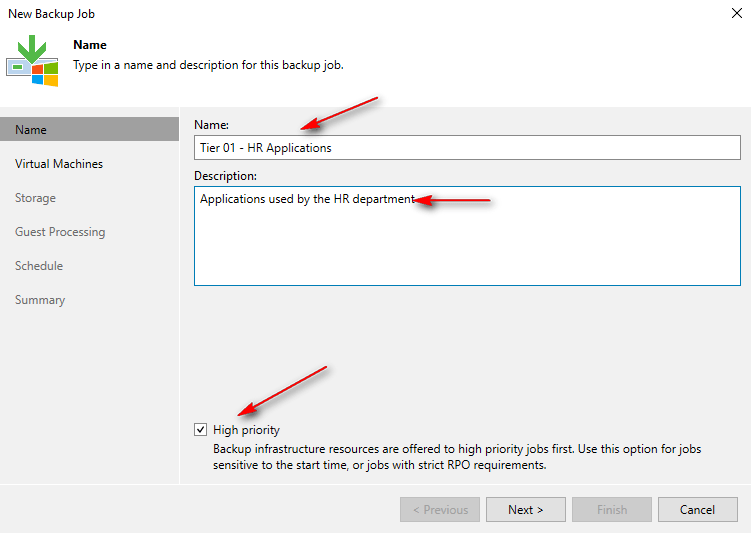
In Name, provide a job name and description for easy workload identification. It is crucial to group resources based on RTO/RPO and retention policies, which vary between departments. On this screen, is the High Priority. This option prioritizes the job if multiple jobs are running concurrently. (Job Priorities – User Guide for Microsoft Hyper-V)”
Virtual Machine section
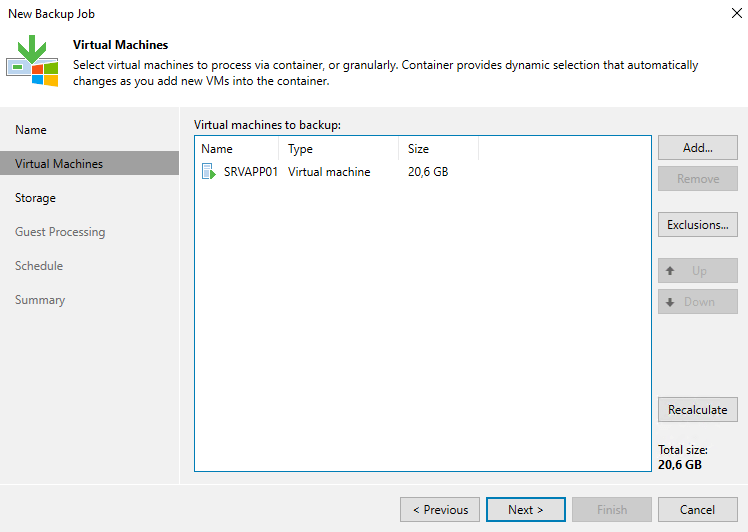
In Virtual Machines to Backup, click Add to add VMs from Hyper-V Hosts or Clusters, specific disk drives (including all VMs located on those drives), Tags (available in SCVMM), the search bar, or Hyper-V VM groups.
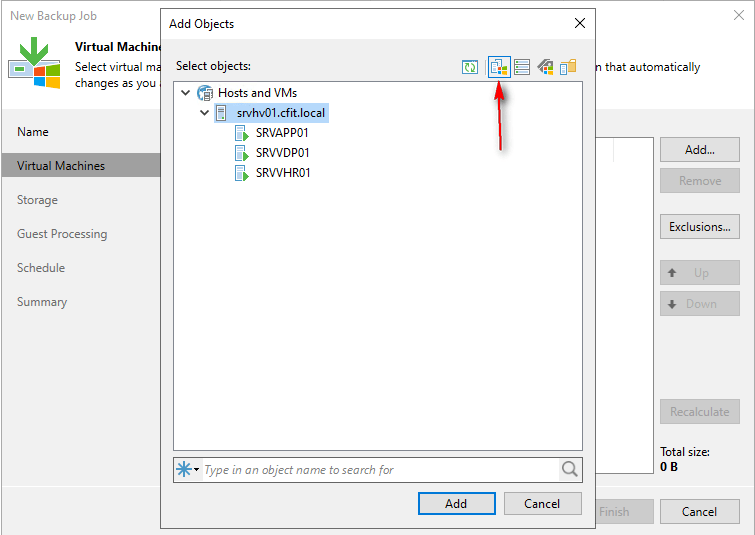
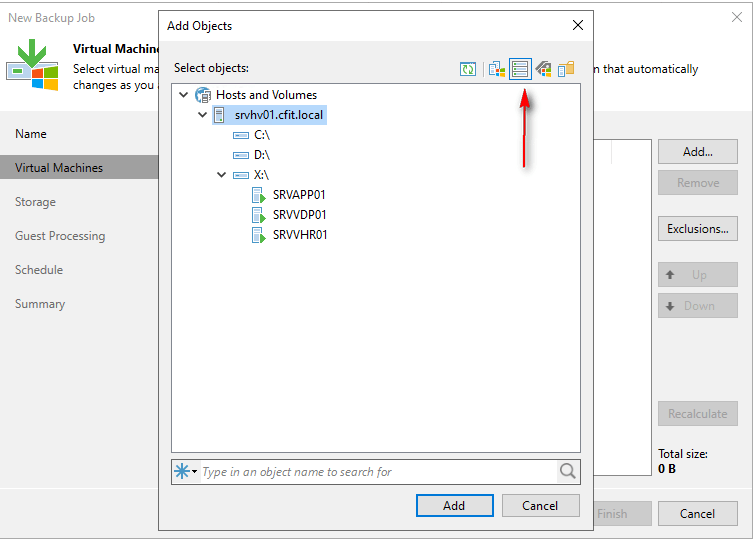

In the Exclusion section, you can exclude workloads from the job, especially useful in multi-Hyper-V or cluster environments. For example, if you have a three-node cluster and need to exclude node 01, add the cluster to the job and then exclude that host. This applies to VMs and volumes as well. You can also exclude specific disks from a VM backup if needed.


Storage section
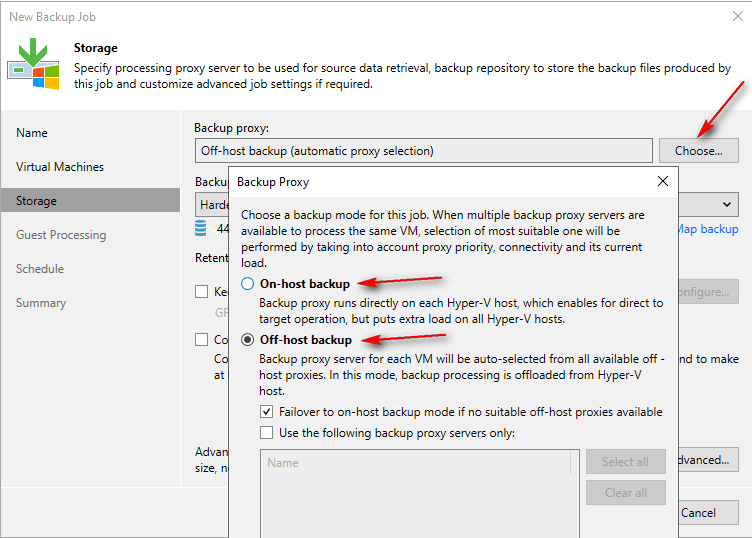
In the Backup Proxy. If your Hyper-V environment is large, a dedicated host for an off-host proxy (Off-Host Backup Proxies – User Guide for Microsoft Hyper-V) may be necessary. This topology allows you to use a non-production server to process VMs, reducing overhead on the production Hyper-V host.
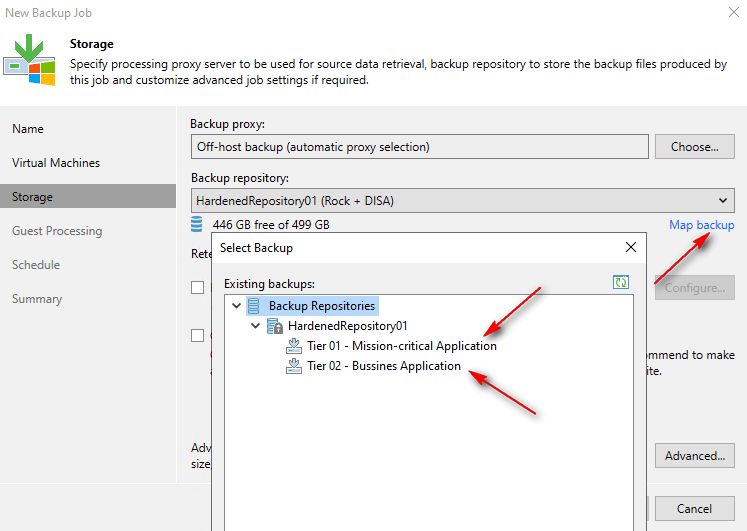
In the Backup Repository, select your choice.

Map backup (Step 6. Specify Backup Storage Settings – User Guide for Microsoft Hyper-V) option allows you to map a backup to a job if you accidentally delete the job or move and import data to another repository.
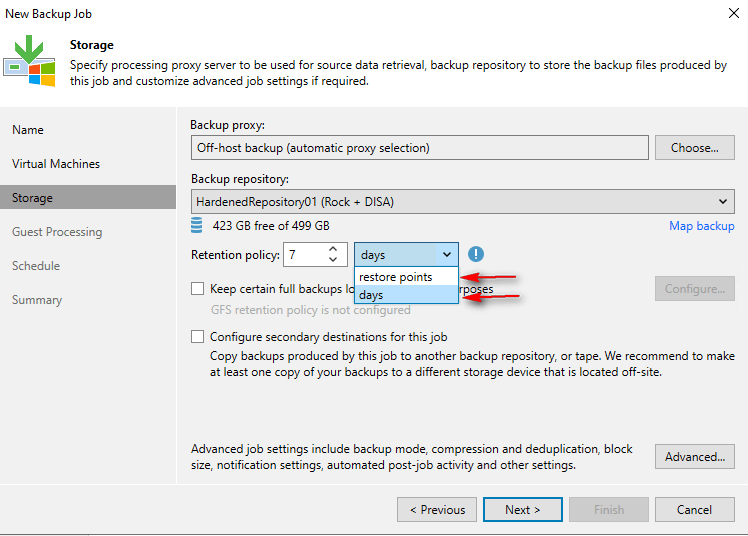
In the Retention Policy (Short-Term Retention Policy – User Guide for Microsoft Hyper-V), you can define retention by days or restore points. If you choose days, multiple backups on the same day are treated as a single retention unit. If you choose restore points, retention applies to each backup point. Using Forever Forward Incremental or Reverse Incremental backup mode can significantly impact storage space, regardless of whether you choose days or restore points. The optimal retention policy depends on the repository type (Hardened, NFS, SMB, Deduplication Appliance, etc.)
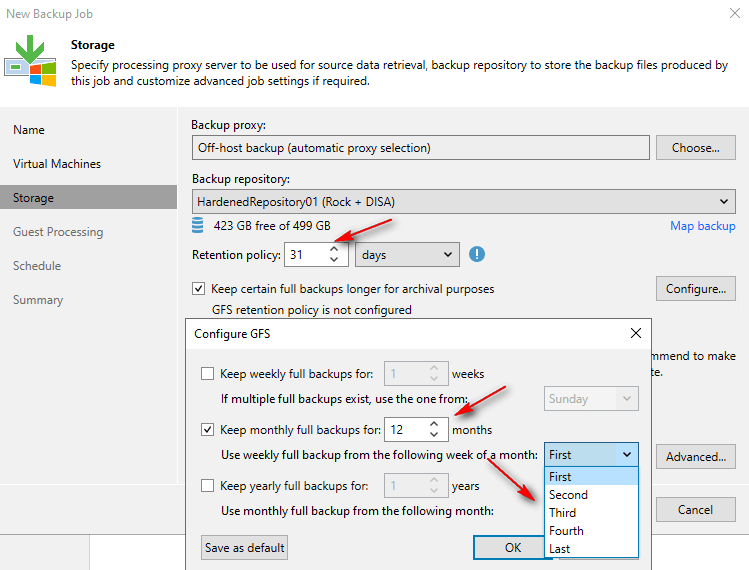
In the Keep certain full backups longer for archive proposes (Short-Term Retention Policy – User Guide for Microsoft Hyper-V), you can configure extended retention to keep certain full backups longer. For example, set the Retention Policy to 31 current days and retain 12 monthly backups (one year, months 1-12).
The following posts will cover Secondary Destination Jobs (Copy), advanced configurations, guest processing, and scheduling options.
Thanks for your time!
😉
 Cuca Fresca IT
Leave a comment