
This part of the guide will cover some Advanced Settings options relevant to configuring Veeam Backup for Hyper-V Jobs.
Advanced Settings – Backup
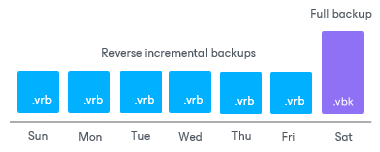
When using Reverse Incremental, your most recent restore point is always a full backup. The initial backup operation generates a full backup, and subsequent backups are incremental, the most recent restore point is always a consolidated full backup.
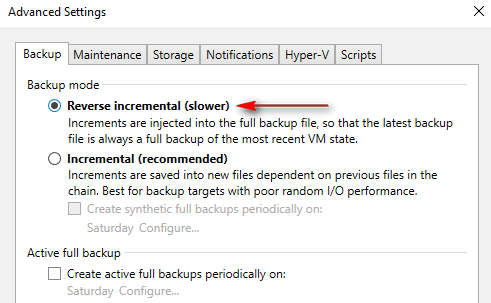
For example, with a 14-day retention policy, if your backup chain started on 03/03/2025, and run successfully until 03/15/2025, and you need to restore to 03/15/2025 (on 03/16/2025), Veeam Backup will restore the last Full Backup (Saturday, 03/15/2025).
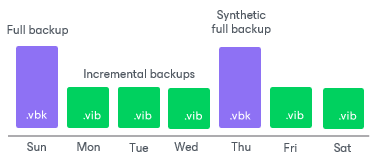
When using Incremental (Forward Incremental) backups with the Create a Synthetic full backups periodically option enabled, you can select a specific day of the week for Veeam to generate a new full backup. The initial backup is a full backup, and the subsequent backups are incremental until the next scheduled Synthetic Full Backup, at which point a new full backup is created, and the incremental chain restarts.
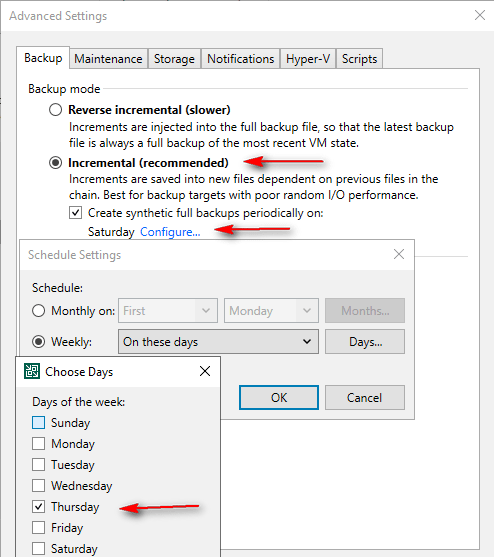
For example, with a 14-day retention policy and Synthetic Full Backups scheduled for Thursdays, if your backup chain started on 03/03/2025, and run successfully until 03/16/2025, and you need to restore to 03/16/2025 (on 03/17/2025), Veeam Backup will restore the last Synthetic Full Backup (Thursday, 03/13/2025) more the three subsequent incremental points.
When using Incremental (Forever Forward Incremental) backups with the Create a Synthetic full backups periodically option disabled, the initial backup is a full backup, and all subsequent backups are incremental.
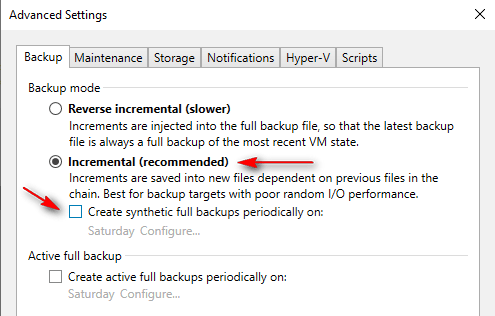
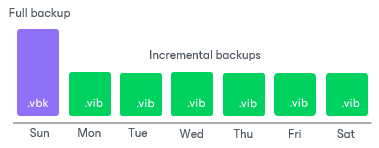
For example, with a 14-day retention policy, if your backup chain started on 03/03/2025, and run successfully until 03/16/2025, and you need to restore to 03/16/2025 (on 03/17/2025), Veeam Backup will restore the last Full Backup (Monday, 03/03/2025) more the thirteen subsequent incremental points.
The Active Full Backup method shares with Synthetic Full the ability to define a weekly or monthly execution schedule. However, Active Full Backup differs by reading and transferring the complete backup data from the production environment to the repository. This approach is especially beneficial for adhering to backup compliance regulations that require full backups originating directly from production, or when employing a Deduplication Appliance, where certain vendors advise Active Full Backups to maximize compression and deduplication effectiveness.

When using Reverse, Forward Incremental and Forever Forward Incremental backups, Veeam Backup creates incremental backups from the production environment and merges/consolidates these incremental points with existing full backups. This process occurs directly on the Backup Repository and does not require retrieving a new full backup from production.
Advanced Settings – Maintenance
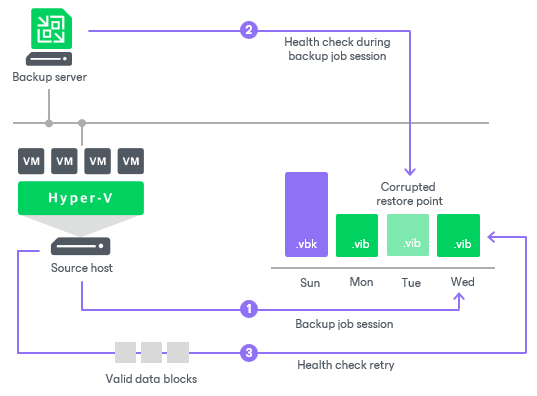
When you enable Performance backup files health check, you can configure a weekly or monthly day for Veeam to run a health check on the backup chain. Veeam will perform a task to validate the integrity of the backup chain. Note: This feature does not guarantee the backup is restorable. For that purpose, you can use SureBackup (which I will cover in future posts).

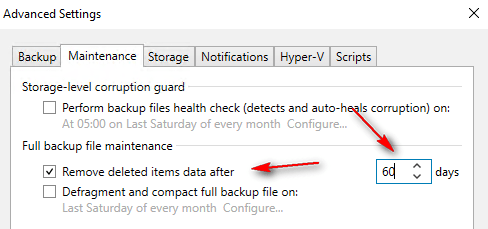
When you enable Remove deleted items data after and a VM is excluded from a job, Veeam will wait N days before deleting references to that VM from the repository. Note: By default, if you remove a VM or delete its job, Veeam does not automatically delete the associated files from the repository.
When you enable Defragment and compact full backup file, you can configure a weekly or monthly day for Veeam to run a task to compact your backups. Veeam will create a new full backup for all VMs currently in the job. If a VM has been removed from the job, Veeam will create a new, separate full backup for it. Note: This option works for Reverse and Forever Forward Incremental backups without Active or Synthetic Full Backups and may result in high storage consumption.

Advanced Settings – Storage
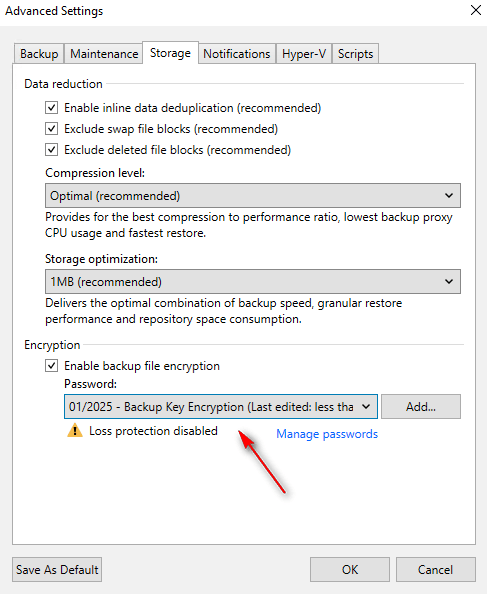
In the Data Reduction settings, you can Enable inline deduplication. This feature compresses and deduplicates backup files on your proxy before they are transported to the repository, thus reducing the size of backups. Additionally, you can exclude swap file blocks (for example, pagefile.sys) and dirty blocks from backups.

In the Compression Level configuration (higher levels increase CPU consumption on the Proxy), you can specify the level of compression aggressiveness you require.
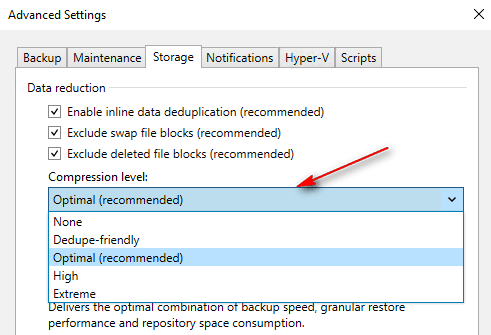
In Storage Optimization, you can configure the block size for backup transport, which varies depending on the repository type. For example, if your repository is a NAS, you can use a block size of 512 KB. If you are transporting data over a WAN to the repository, a smaller block size like 256 KB might be more suitable.

In the Encryption settings, you can enable Veeam to encrypt your backup files at rest. Veeam will write your backups to the repository and protect them using a key. Note: If you lose this key or the keys and do not have Enterprise Manager, you will not be able to import this backup into another Veeam installation (which I will cover in future posts).
All these features help you reduce backup size and enhance security capabilities. If you are using a Deduplication Appliance, consult your vendor’s best practices, as these options may degrade your appliance’s performance.
This post provides significant detail on the current aspect. The next post will continue this series, sequentially exploring further configuration options for Veeam Backup for Hyper-V Jobs.
Thanks for your time!
😉
 Cuca Fresca IT
Leave a comment