
This section of the guide explores some settings within Veeam Backup for Hyper-V, offering crucial options to tailor backup job configurations for enhanced efficiency and specific needs. These settings encompass Guest Processing and Schedule.
Guest Processing: Veeam Backup & Replication’s guest processing options facilitate direct communication with a virtual machine’s (VM) guest operating system (OS). This interaction is fundamental for creating transactionally consistent backups and replicas, and for cataloging guest OS files and folders.
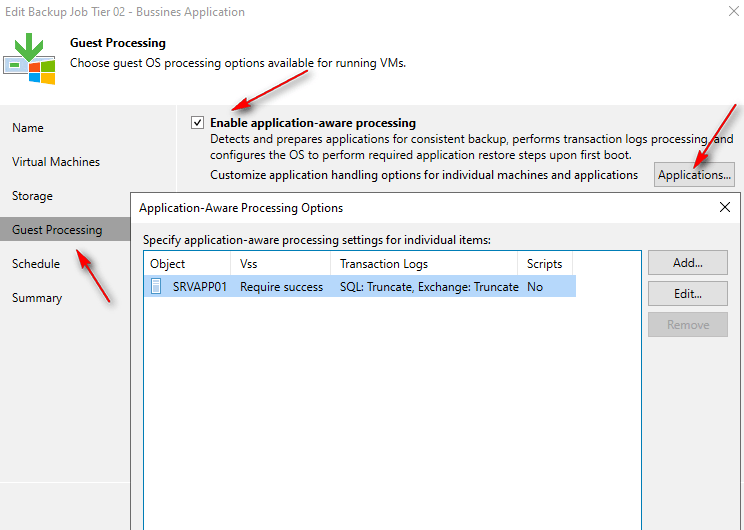
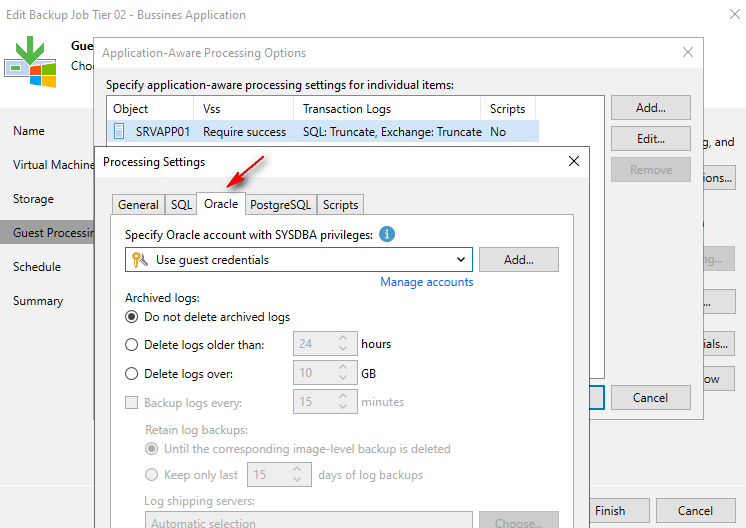
Application-Consistent Backups: guest processing allows for the creation of transactionally consistent backups and replicas for VMs running critical applications such as Microsoft Active Directory, Microsoft Exchange, Microsoft SharePoint, Microsoft SQL Server, Oracle Database, and PostgreSQL instances. This level of consistency ensures these applications can be reliably recovered without data loss.
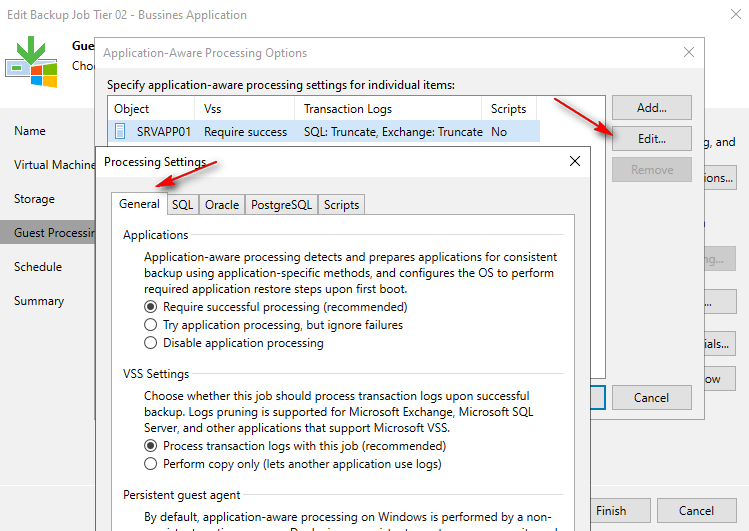
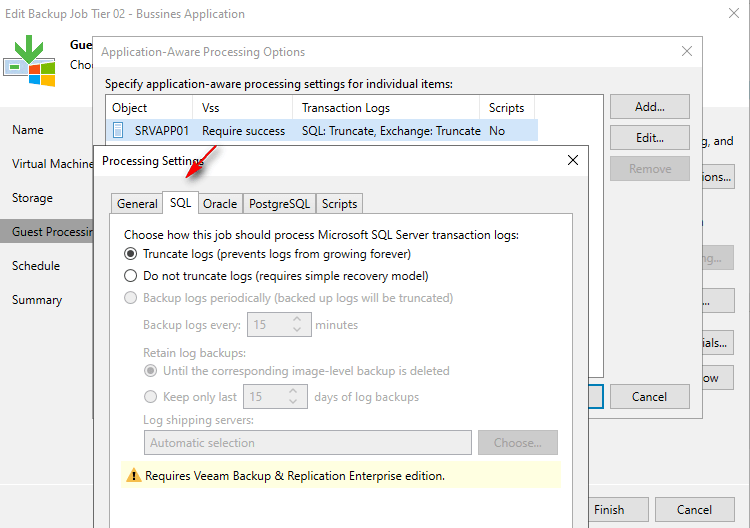
Log Management and Point-in-Time Recovery: upon successful job completion, Veeam Backup & Replication produces a backup file or VM replica and truncates transaction logs on the original VM. This provides a precise point-in-time VM image for recovery. Consequently, databases can be restored to this specific point. However, due to log truncation, recovery to intermediate points between job sessions using these truncated logs is not possible.
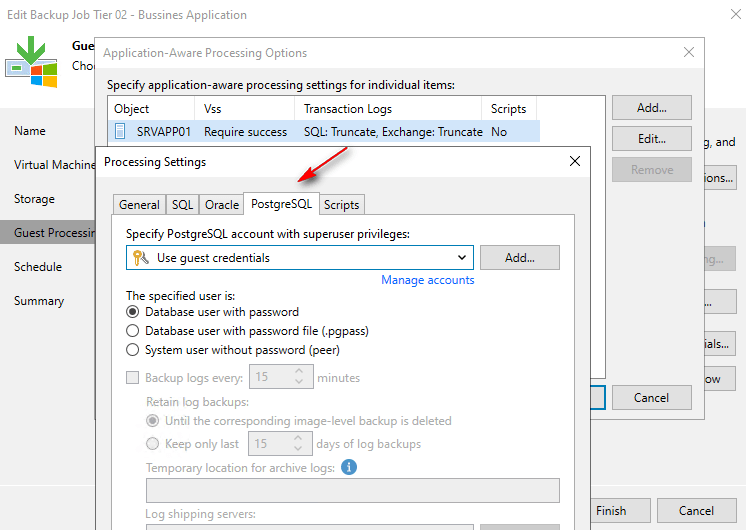
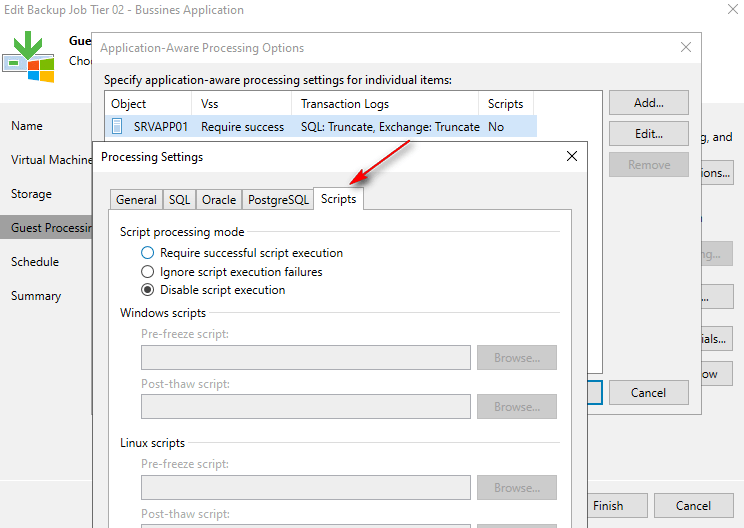
Custom Scripting for Application Quiescing: for VMs with applications that do not support Microsoft VSS (Volume Shadow Copy Service), Veeam Backup & Replication can execute custom scripts. For example, a pre-freeze script can quiesce the guest OS file system and application data, ensuring a consistent state before a VM checkpoint is triggered. Following the checkpoint, a post-thaw script returns the VM and applications to their initial operational state.
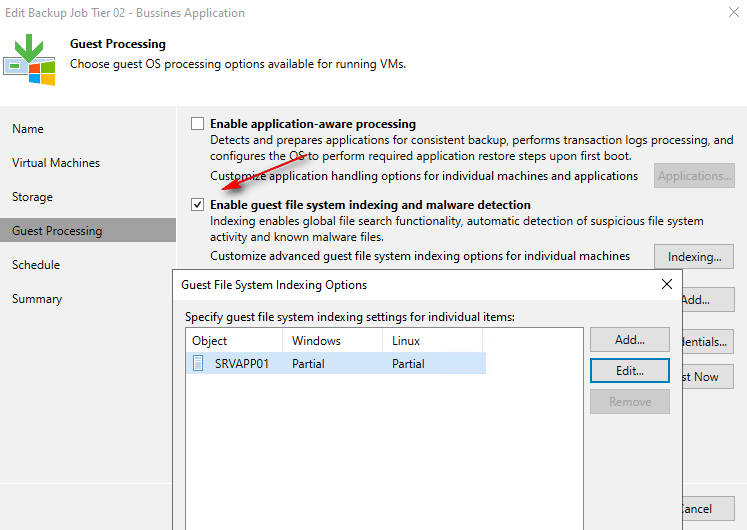
Guest File System Indexing: Veeam Backup & Replication can also index files and folders within the VM guest OS during backup. This VM guest OS file indexing enables users to search for specific files within VM backups and perform 1-click restores using Veeam Backup Enterprise Manager. (Note: The importance of malware scanning in conjunction with this feature will be addressed in subsequent discussions).
Schedule: Veeam Backup & Replication has smart ways to set up when your backups happen. This makes sure your important computer files are always safe, exactly when you need them, without slowing down your everyday work.
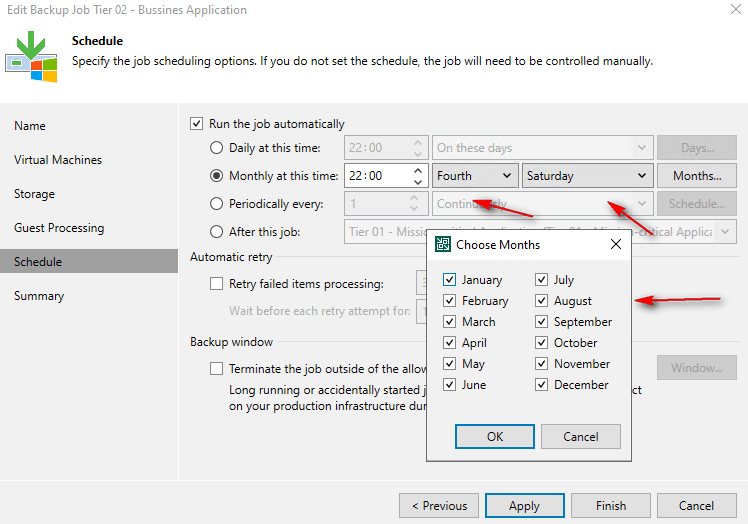
Regular Times: you can set backups to happen every day, on certain days of the week, or on specific days each month. This is great for your normal, steady backup needs.


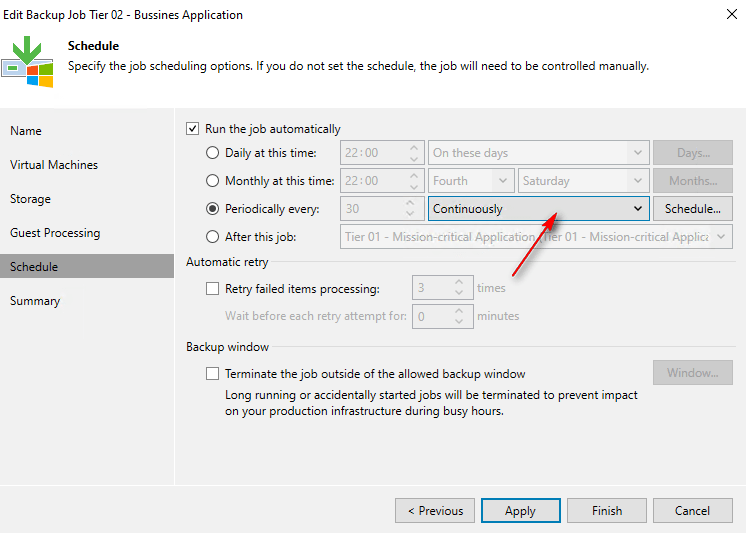
Always Running: for your most critical computer programs, where losing even a few minutes of data is a big problem, you can have backups run non-stop. As soon as one backup finishes, the next one starts right away.
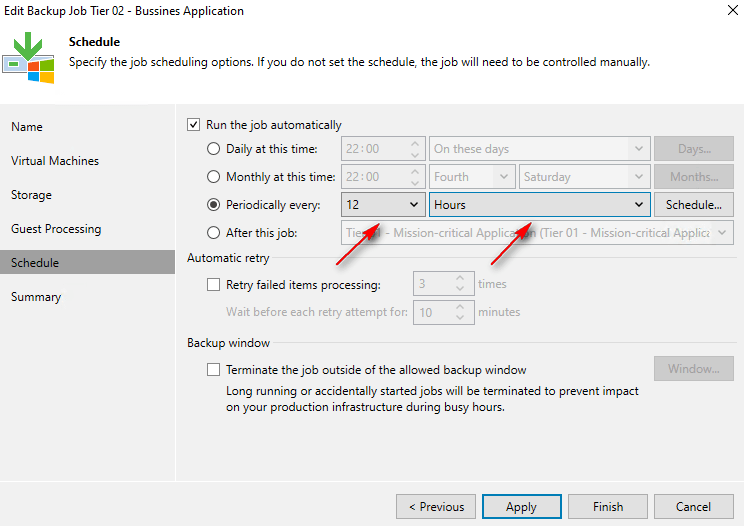

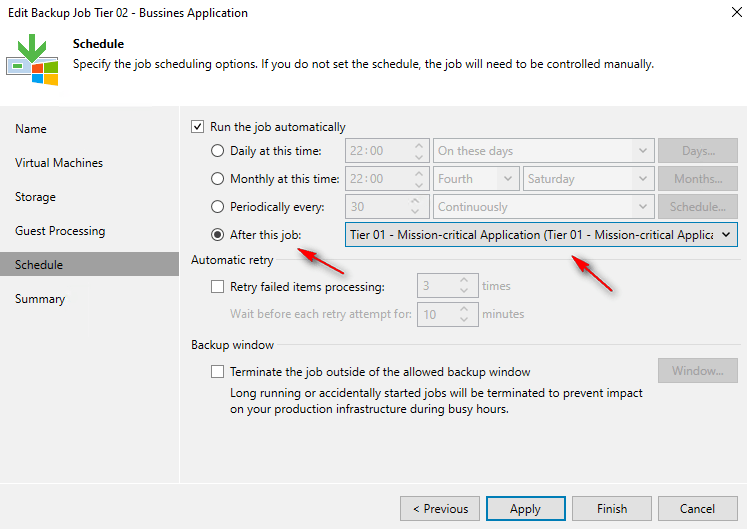
Chaining Jobs: sometimes you need backups to happen in a certain order. Veeam makes this easy. You just set a start time for the first backup. Then, for the ones that follow, you simply tell them to start after the one before it finishes. This keeps everything organized and running smoothly.
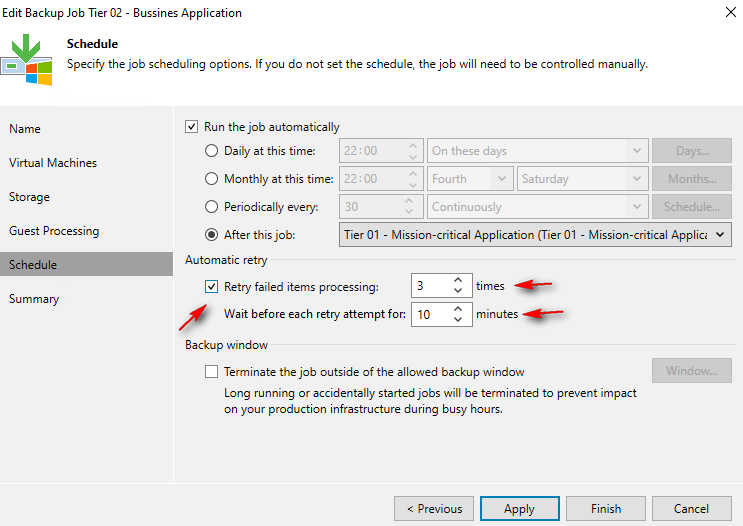
Automatic Retries: occasionally, a backup might hit a error, like a network problem. Veeam is designed to handle this. By default, if a backup fails, it will automatically try again up to 3 times in the same session. You can change this number if you need to. Veeam only retries if the job truly failed and some parts didn’t finish. If it mostly worked (even with a warning), it won’t retry the whole thing. When it does retry, it’s smart and only tries the parts that failed, saving time.
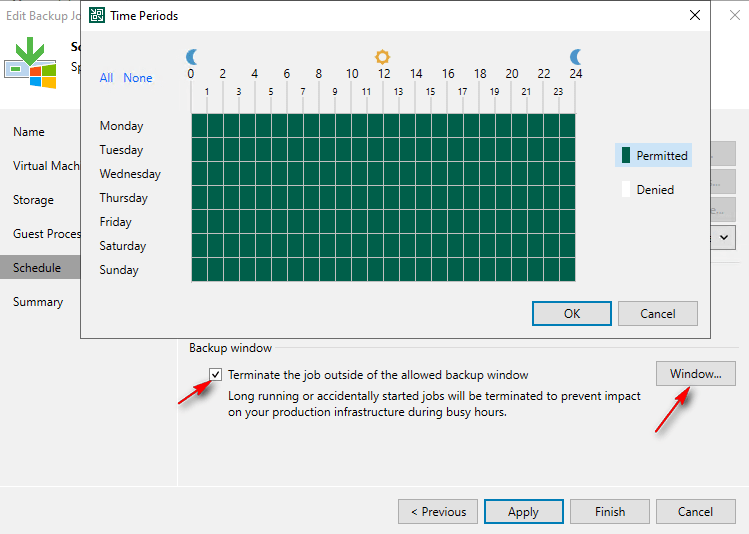
Backup Window: to make sure your backups don’t slow down your infrastructure during busy work hours, you can set a backup window. This is a specific period when backups are allowed to run. If a backup tries to start outside this time, it will wait. Veeam will promptly stop any backup job that enters an unavailable window while it’s still running
All these features provide application-aware protection and granular control to safeguard your workloads.
Thanks for your time!
😉
 Cuca Fresca IT
Leave a comment