
This section of the guide explores some settings within Veeam Backup for Hyper-V, offering crucial options to tailor backup job configurations for enhanced efficiency and specific needs. These settings encompass notifications, Hyper-V integration, and custom scripting capabilities.
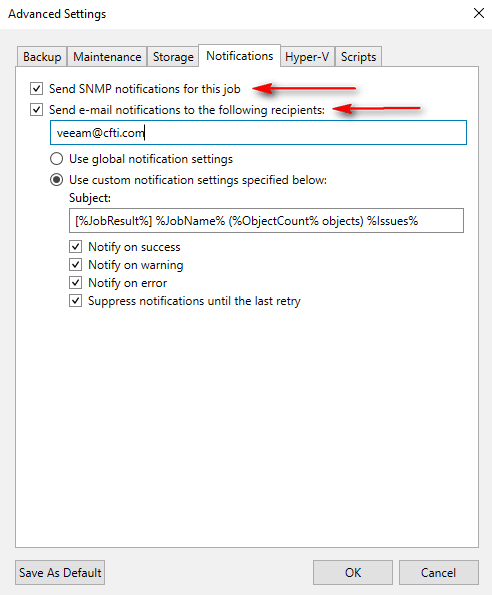
Advanced Settings – Notifications: Veeam allows you to configure SNMP traps for proactive monitoring of this specific backup job. Alternatively, you can designate a particular mailbox to receive detailed backup reports for this job. This offers flexibility beyond global notification settings; for instance, a backup job dedicated to an Oracle database can send its reports directly to the responsible DBA’s mailbox.
Advanced Settings – Hyper-V: By default, Hyper-V guest quiescence is disabled. However, for applications that are incompatible with Veeam’s Application-Aware Processing, enabling this option ensures consistent backups. For example, with a Firebird database, you can employ custom scripts (configured within guest quiescence settings, not here) to gracefully start and stop the database services before and after the snapshot, guaranteeing a consistent backup. Furthermore, when Changed Block Tracking (CBT) is enabled, Veeam performs a full data read during the initial job run, but subsequent incremental backups benefit from reading only the blocks that have changed, significantly accelerating the backup process. To further optimize Hyper-V performance, enabling the Allow processing of multiple VMs with a single volume snapshot option can reduce snapshot overhead. Veeam intelligently groups VMs that reside on the same host, share the same Volume Shadow Copy Service (VSS) provider, and adhere to specific size limitations (4 VMs for software VSS, 8 VMs for hardware VSS), creating a single volume snapshot for the entire group instead of individual snapshots per VM, based on their snapshot consistency type. For example, multiple VMs on the same Hyper-V host utilizing the Microsoft Software Shadow Copy Provider will be processed with a single coordinated snapshot.

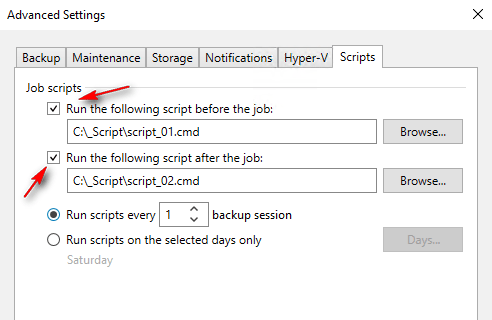
Advanced Settings – Scripts: Veeam provides the capability to run custom scripts both before and after a backup job executes. To utilize this, you select the corresponding Run the following script check-boxes and use the Browse function to locate the executable script files within a local folder on the Veeam backup server. These scripts are executed directly on the backup server. You can also define a schedule for these scripts, either to run after a specific number of completed backup sessions or only on specific weekdays, configured via a dedicated days button.
All these features help you reduce backup size and enhance security capabilities.
This post provides significant detail on the current aspect. The next post will continue this series, sequentially exploring further configuration options for Veeam Backup for Hyper-V Jobs.
Thanks for your time!
😉
 Cuca Fresca IT
Leave a comment